
Add a teammate to your organization
Ask for a teammate’s access from Settings and see when they can sign in.
Tools used: Settings · Team · Organization access
Before you start: Have your teammate’s work email and confirm that they should have access to this organization.
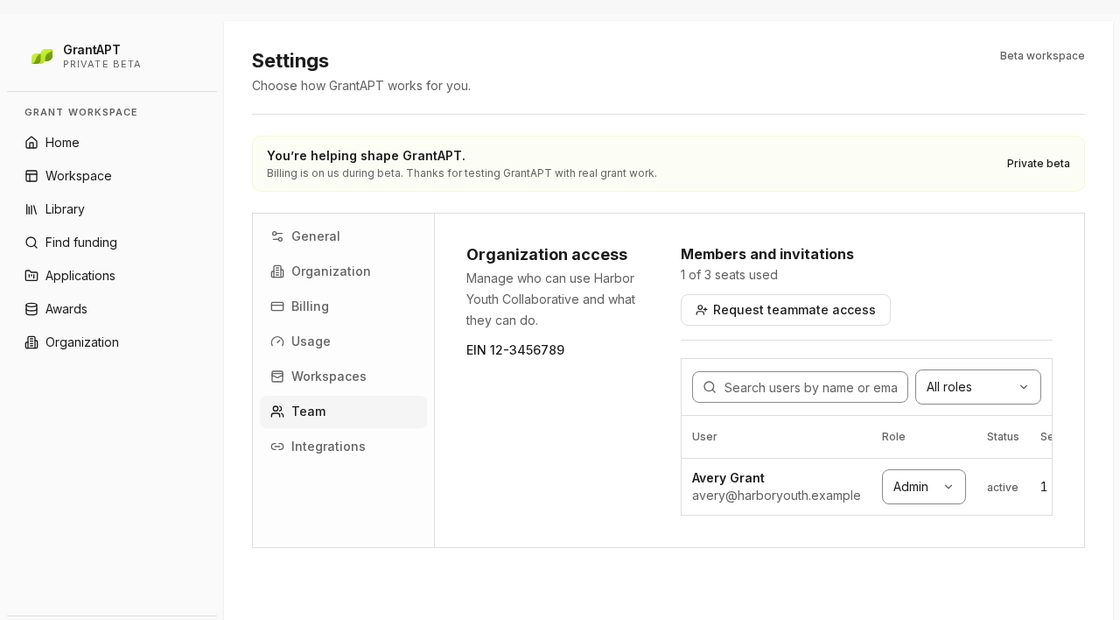
Open Settings, then Team
Open Settings from your account menu and choose Team. Check the organization under Organization access. If you can’t see the request button, ask your organization administrator.
Request access with a work email
Choose Request teammate access, enter the work email they’ll use to sign in and choose Submit request.
Wait for the invitation
GrantAPT checks each request before sending an invitation. Once it arrives, your teammate can follow the link to activate their access. If you entered the wrong email, contact support.
Check that your teammate can open their files
Ask them to sign in and open the work they’ll need. You may still need to share individual files from Library. If you’ve used all your beta seats, ask your administrator or support about adding someone.